
Quale attività vuoi creare?


How can I get my Google account Client ID and Client Secret key?
Follow below mentioned steps to get your Google Client ID and Secret Key:
Step 1 : Go to Google Developer portal
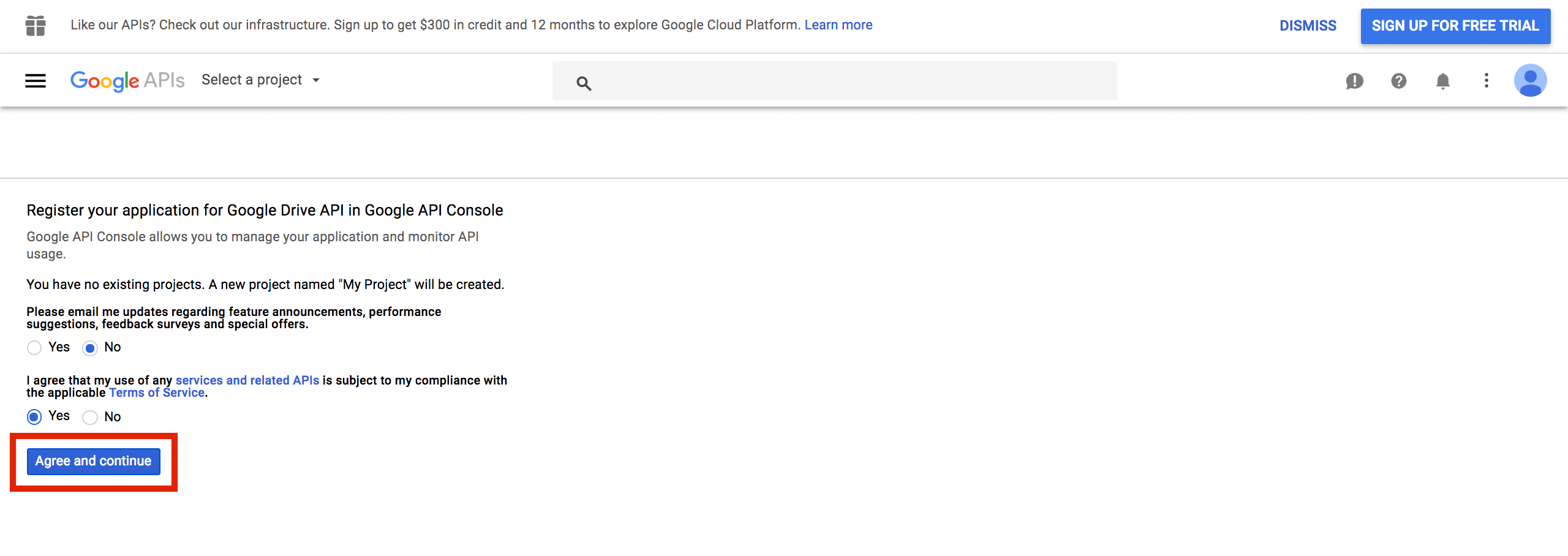
Step 2 : If you have just created Google Developer account, you need to click on Agree and continue button to get into your Google Console account. However, if you have already accepted Terms & Conditions, then skip Step 2 & 3, and follow the tutorial from Step 4
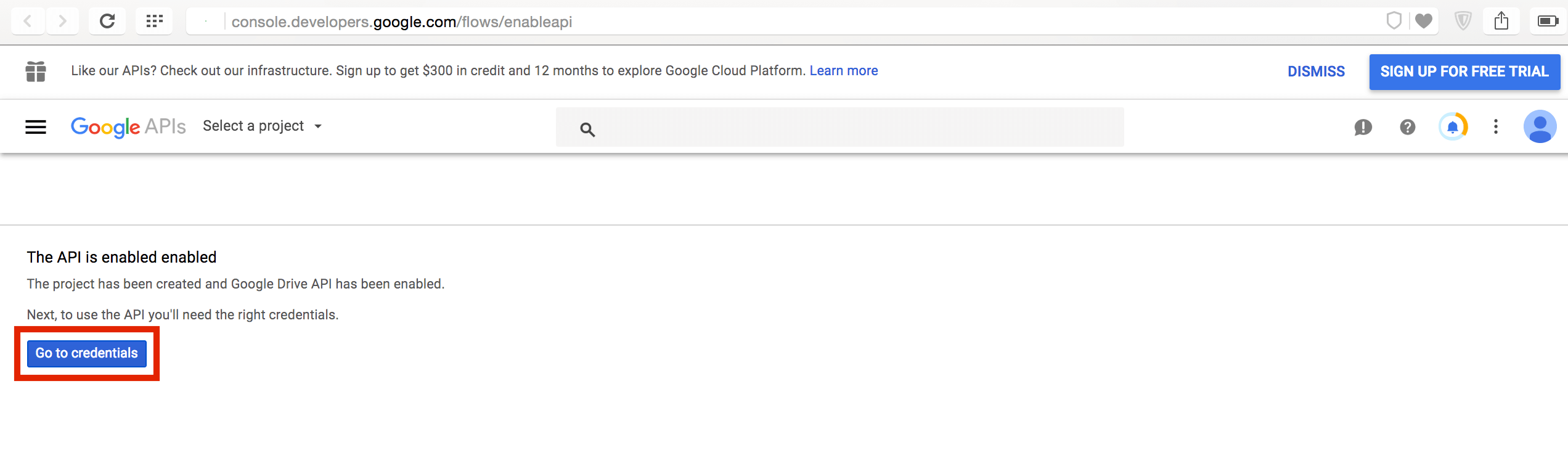
Step 3 : After agreeing to the Terms and Conditions, click on Go to credentials
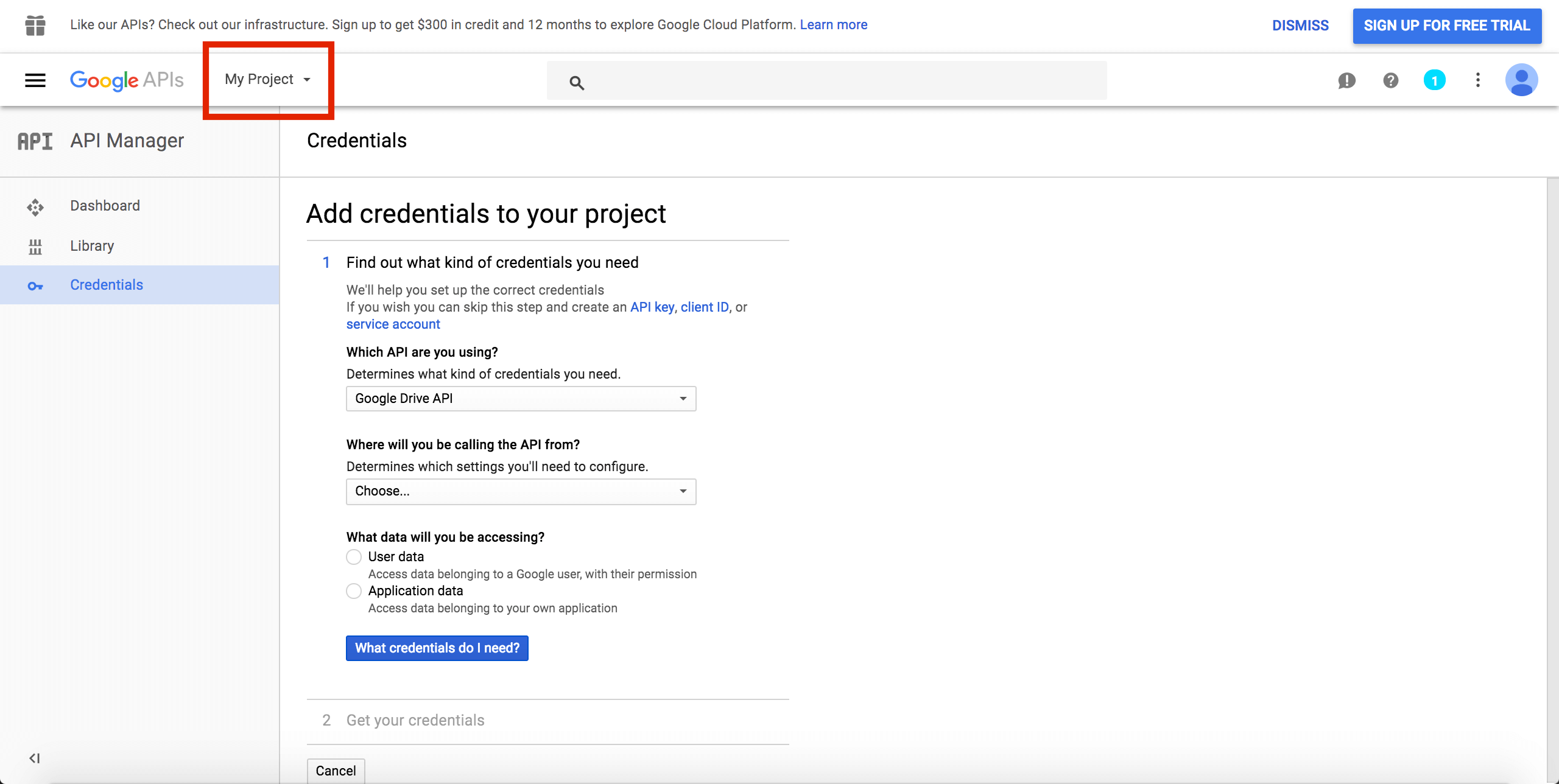
Step 4 : A default project titled as My Project will start reflecting in your account, if you want, you can continue with the same project and follow the tutorial from Step 7. However, you can also create your own new project. For creating a new project, click on My Project dropdown menu present at the top
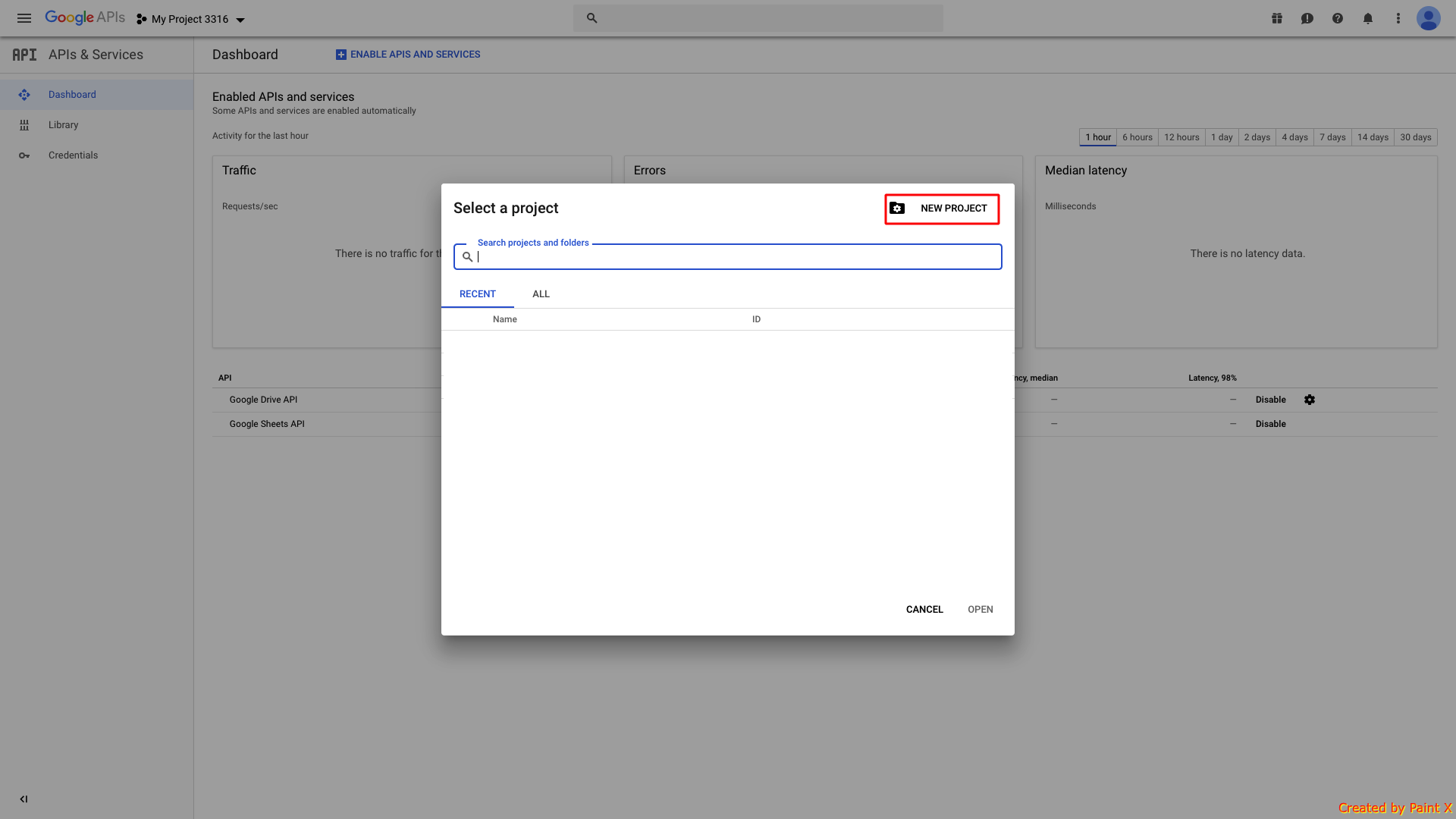
Step 5 : It will open select a project window, click on New Project
Step 6 : Here is your Project Name. Click on Create to continue
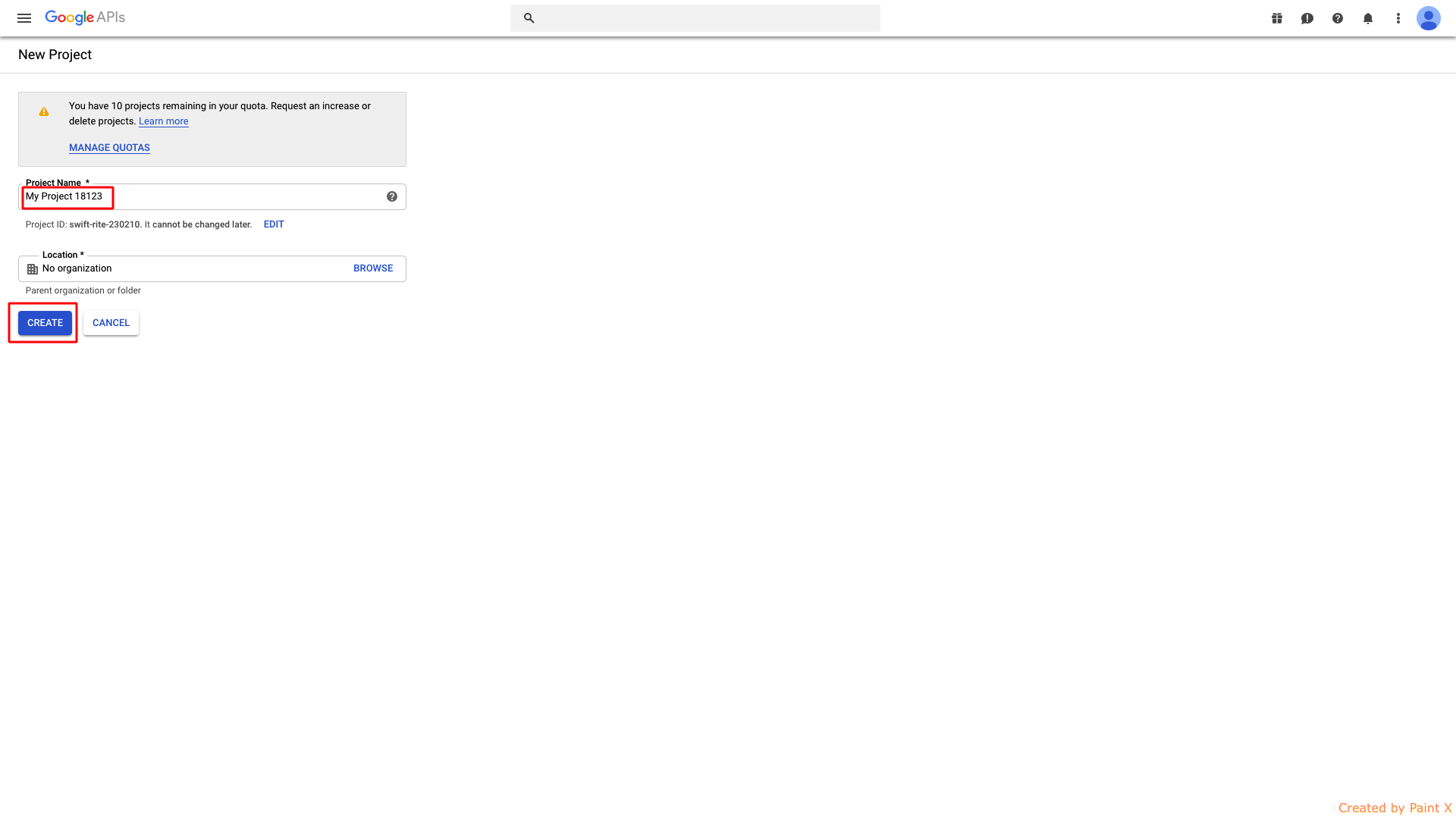
Step 7 : Click on My Project dropdown menu
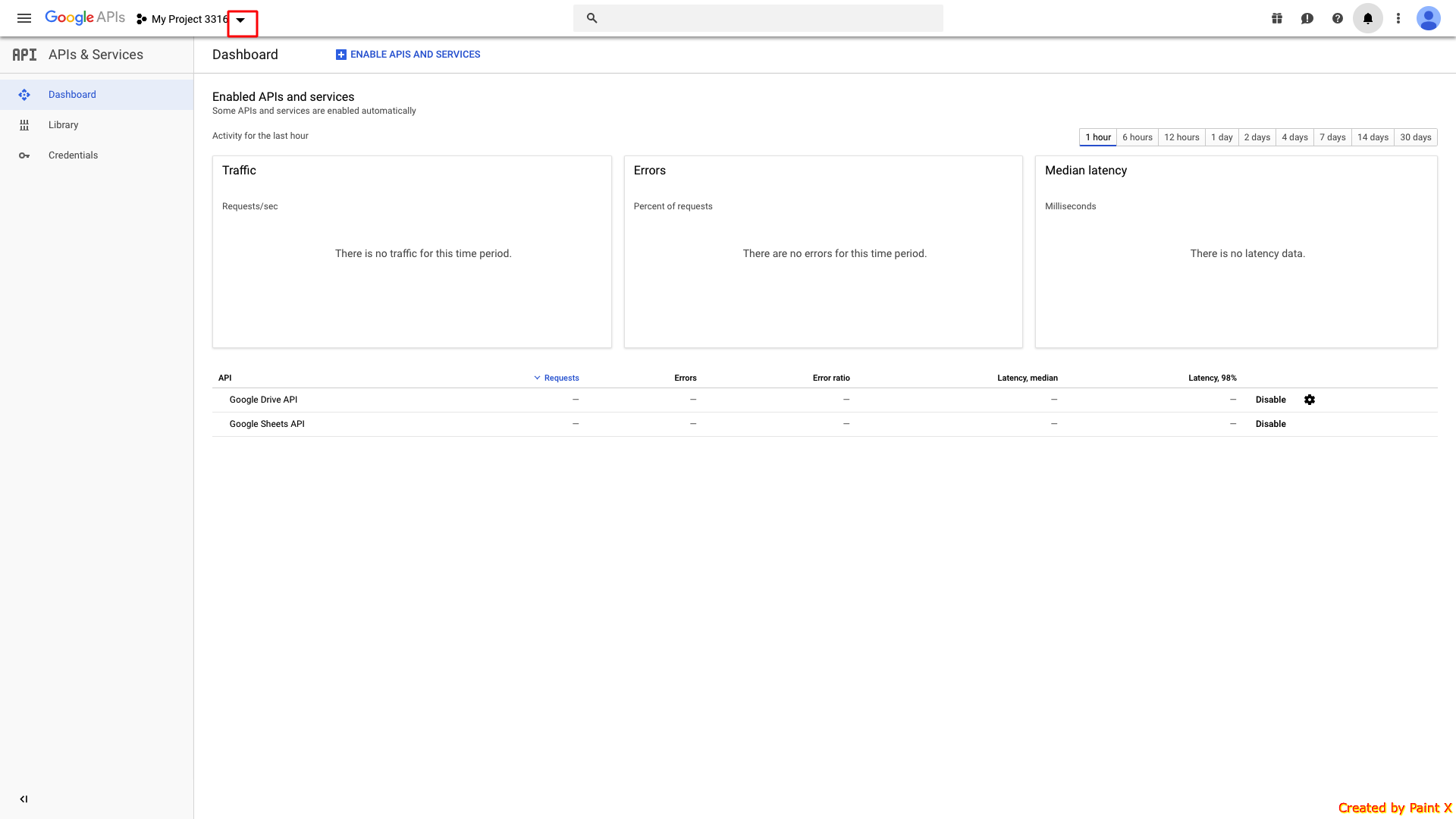
Step 8 : Open the project that you have created
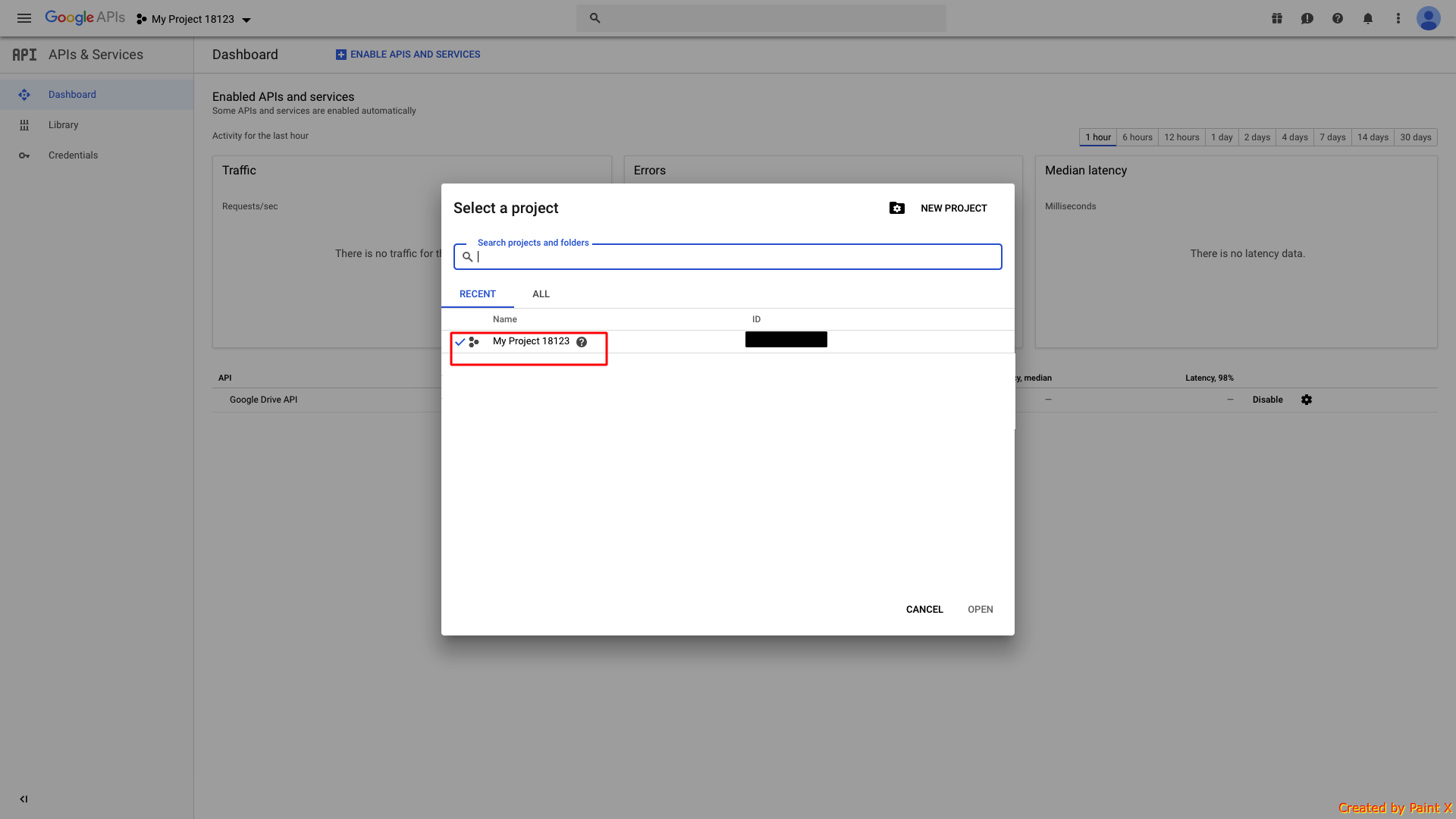
Step 9 : Under Credentials section, select the OAuth consent screen tab
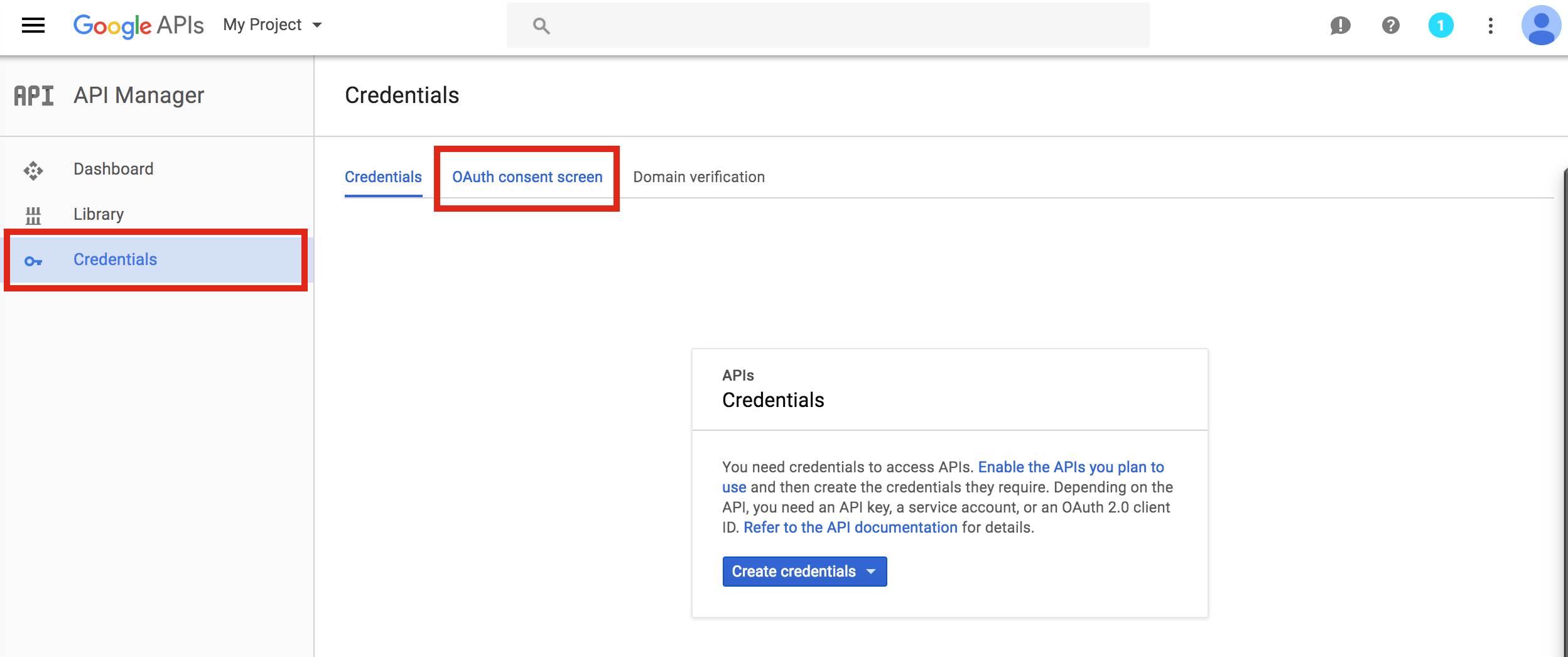
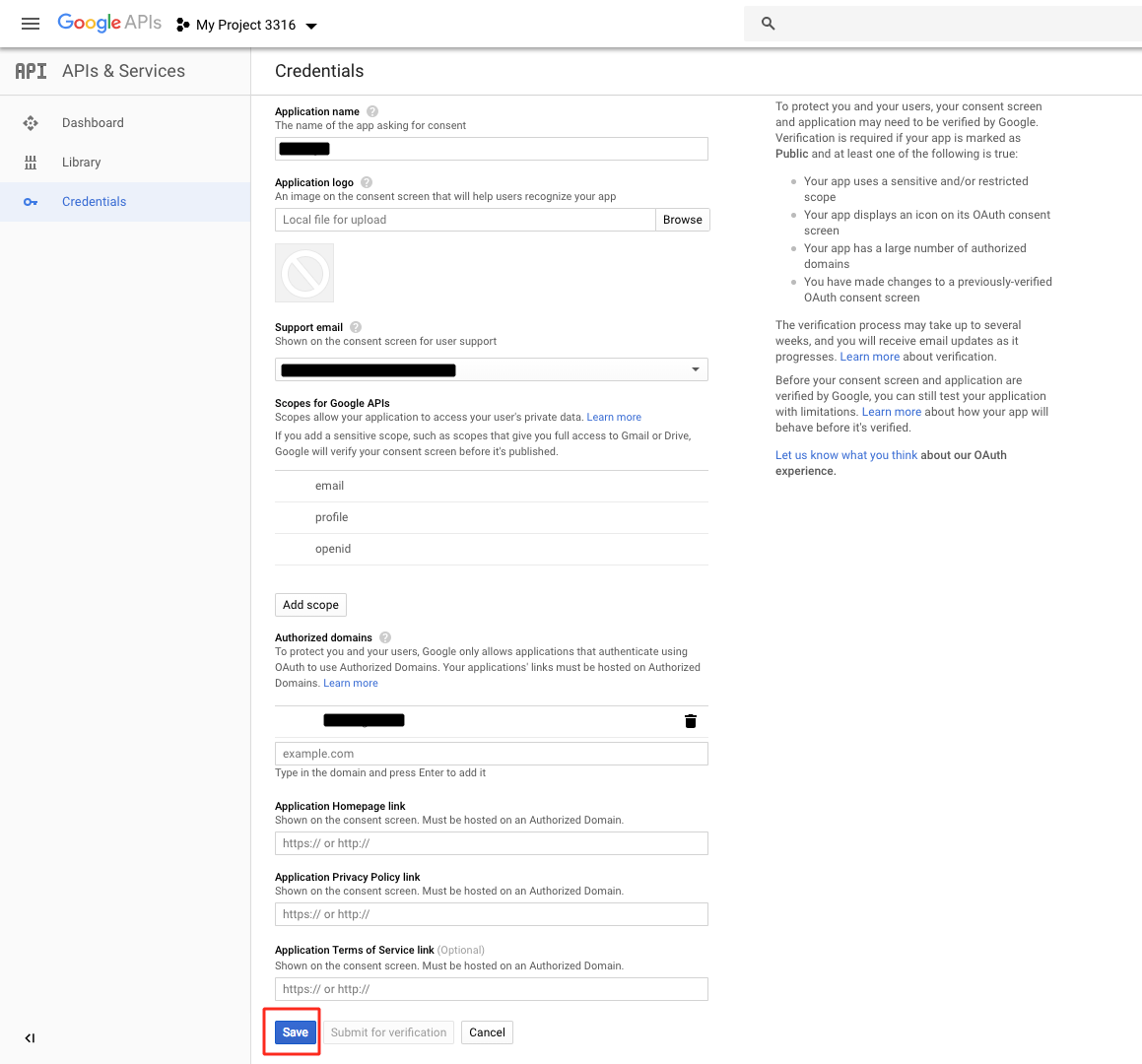
Step 10 : Enter Application Name and Authorized Domains.In the Authorized Domains field, enter the URL - https://gigafix.myapparea.com . If you want, you can add privacy policy link here
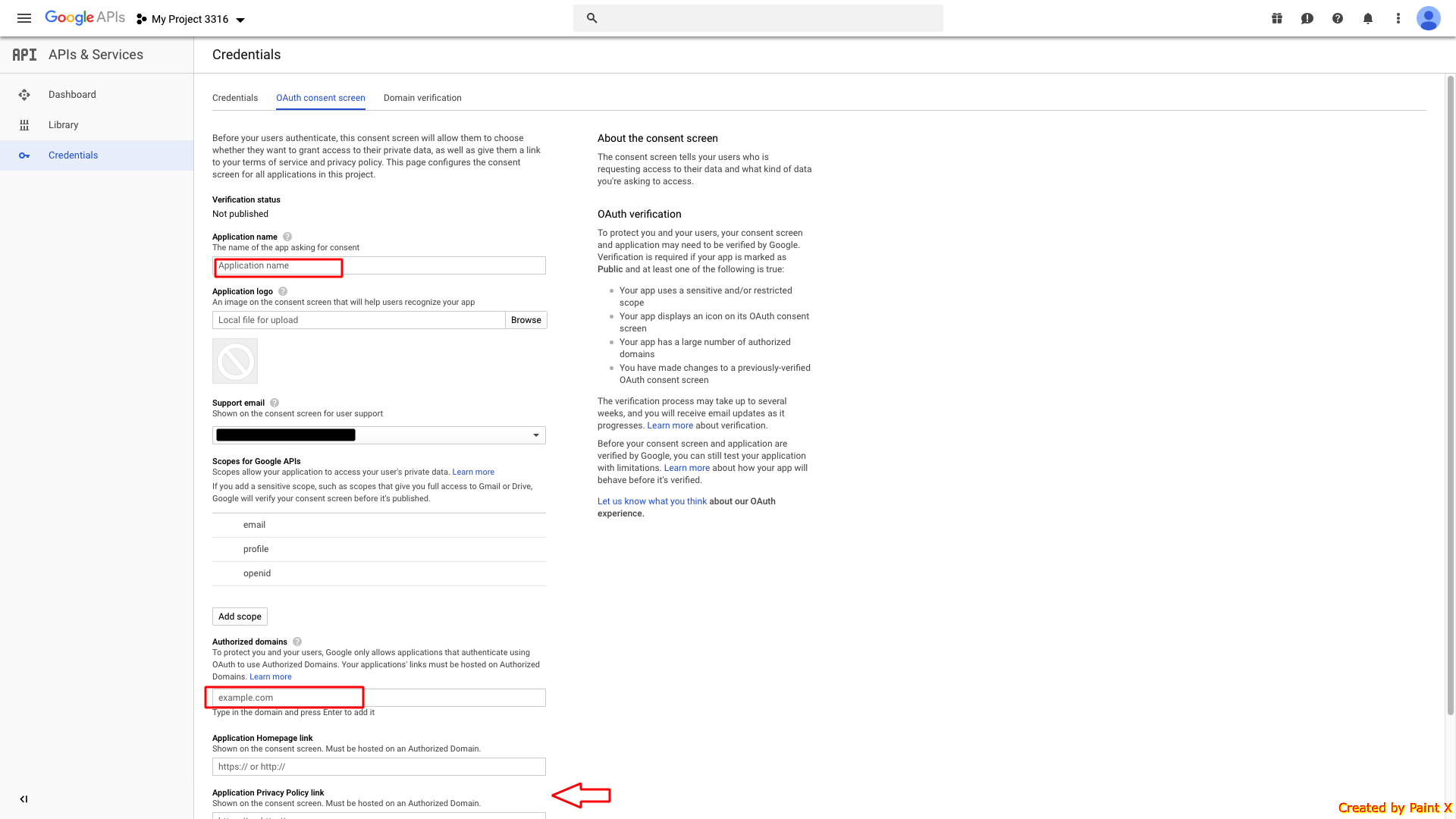
Step 11 : Click on Save
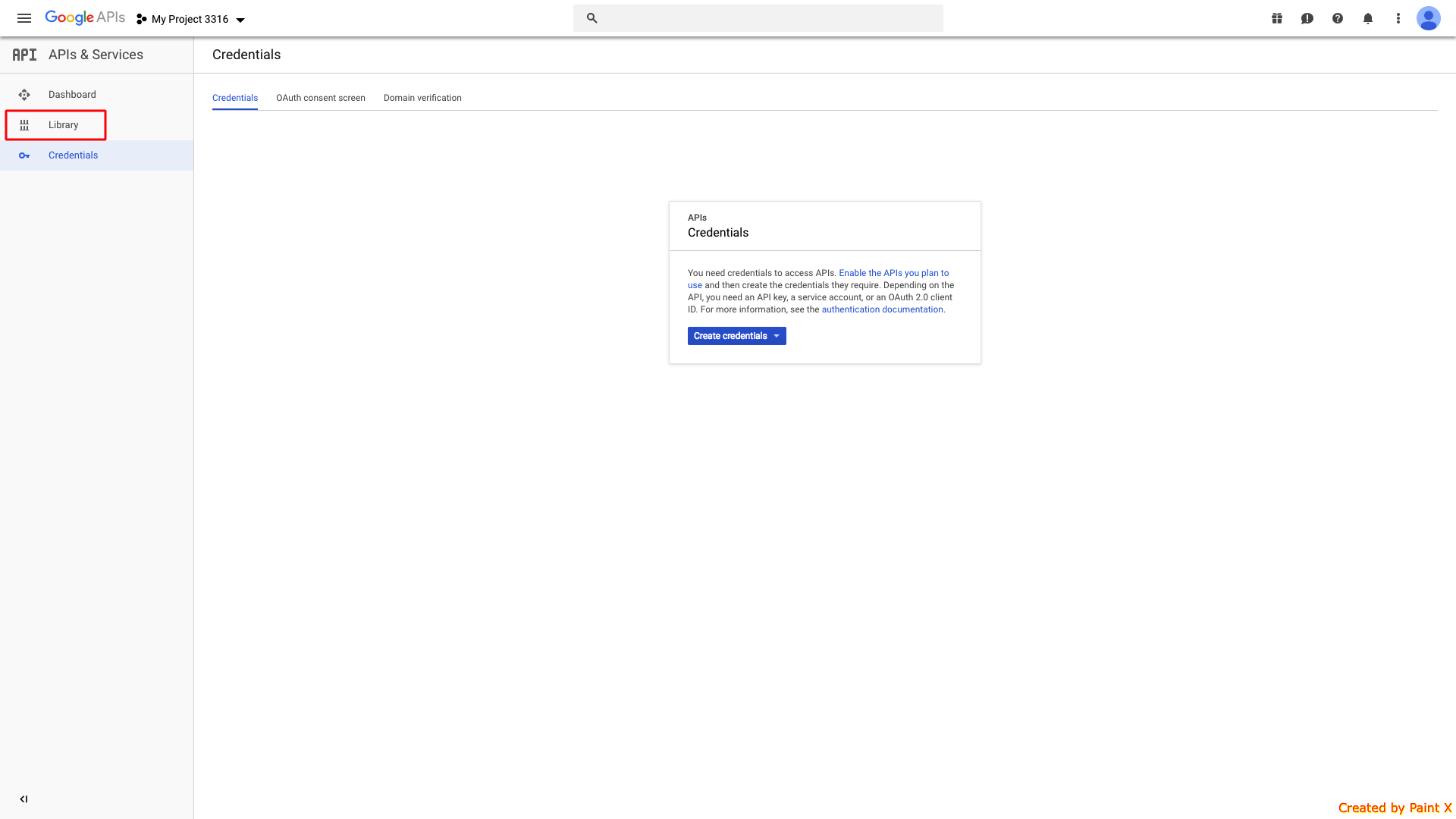
Step 12 : Select Library from side menu
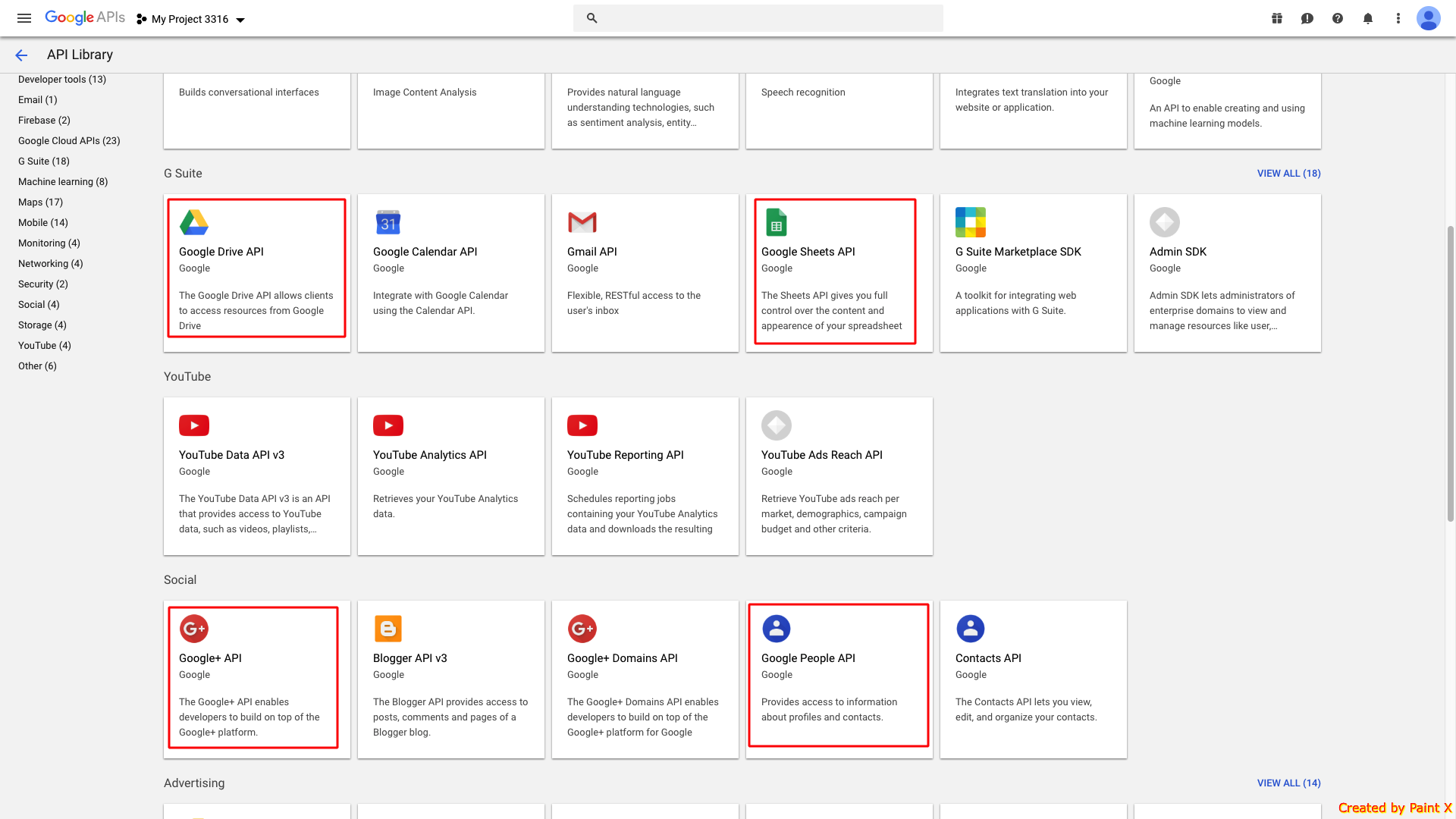
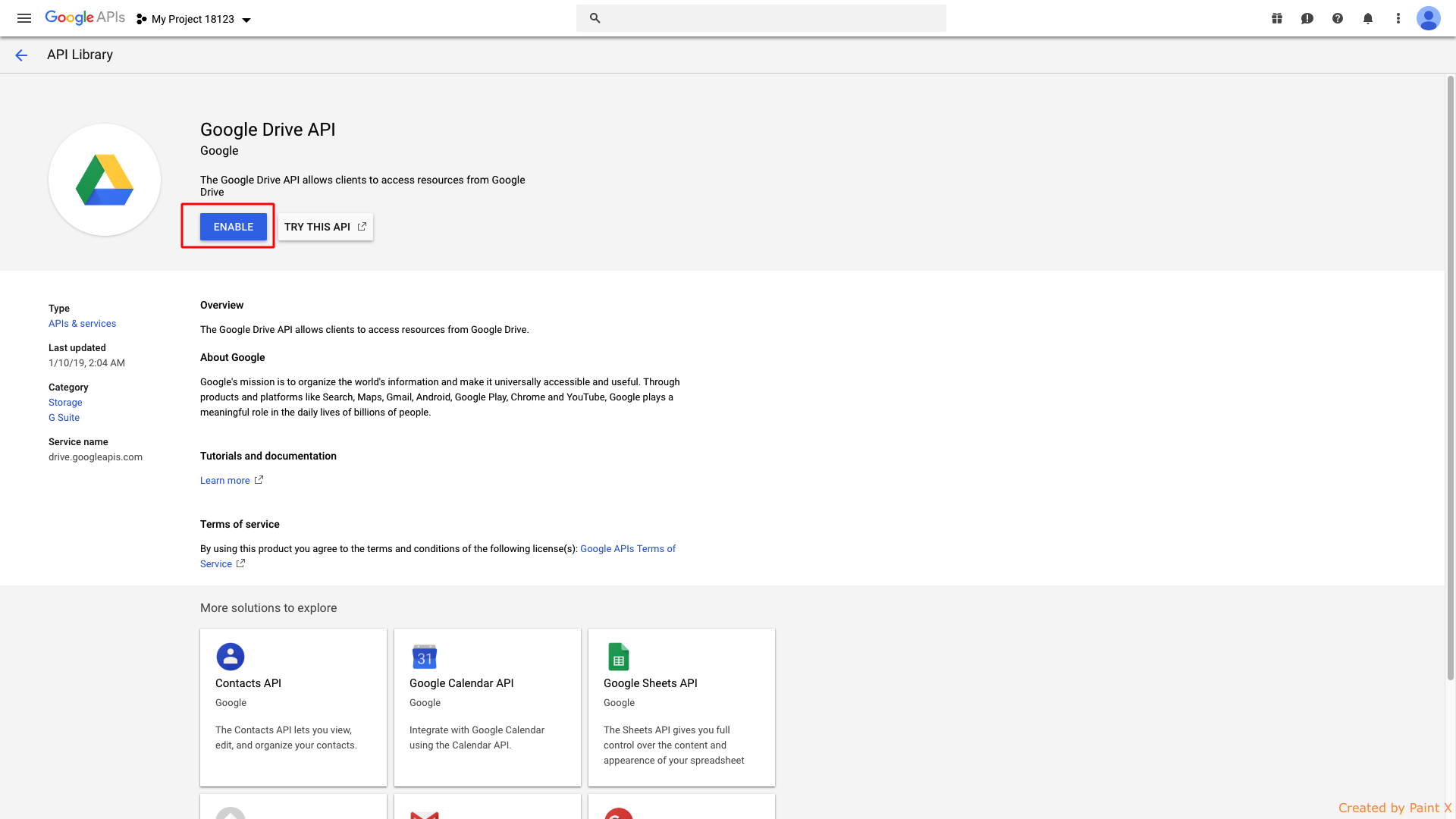
Step 13 : Now you need to enable all the highlighted APIs, that is Google Drive API, Google Sheets API, Google+ API and Google People API. Here, we are showing you the process to enable Google Drive API, follow the same process for other keys
Step 14 : Click on Enable
Note : After enabling this API, your documents will be shown on the app
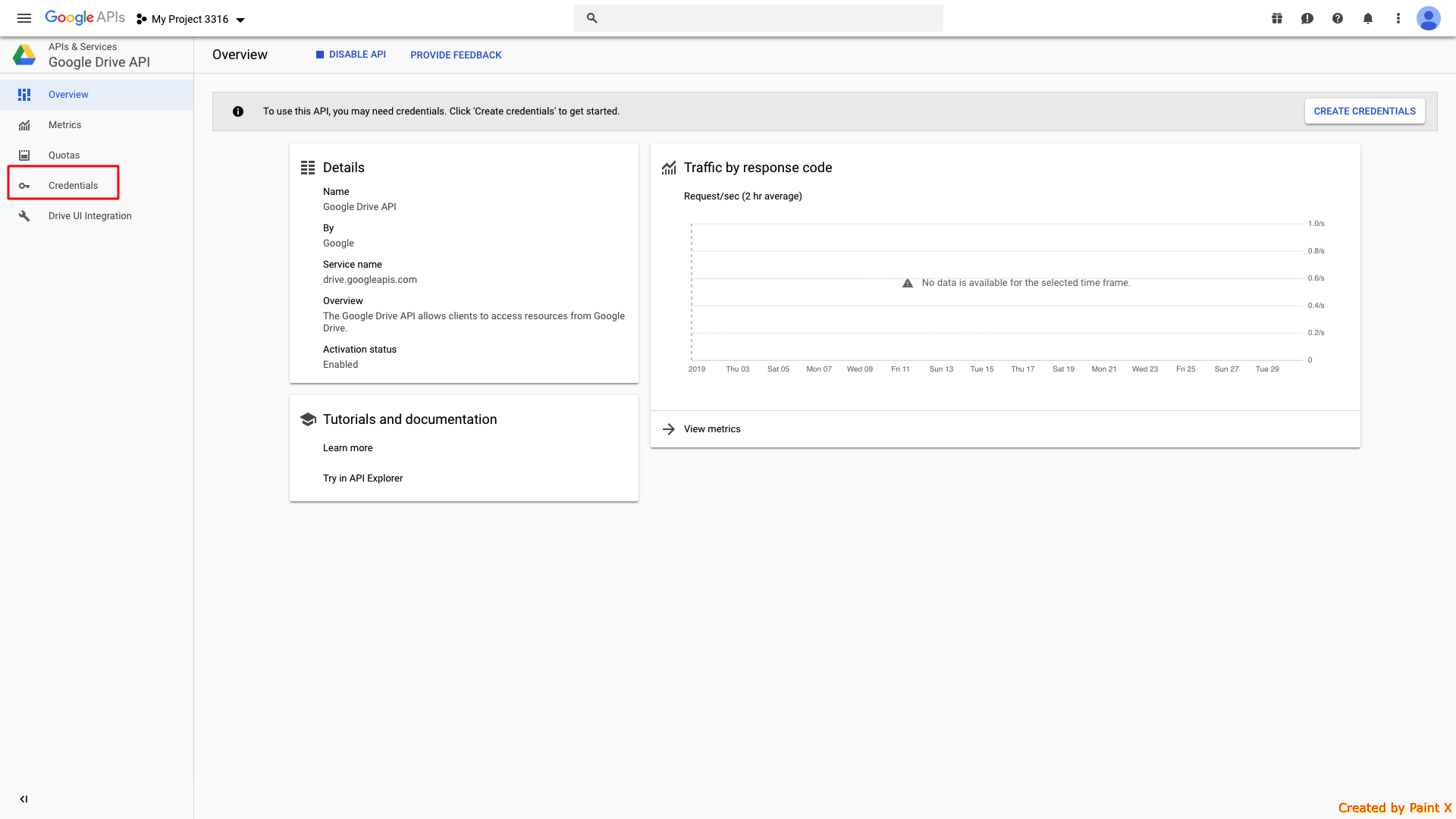
Step 15 : Click on Credentials
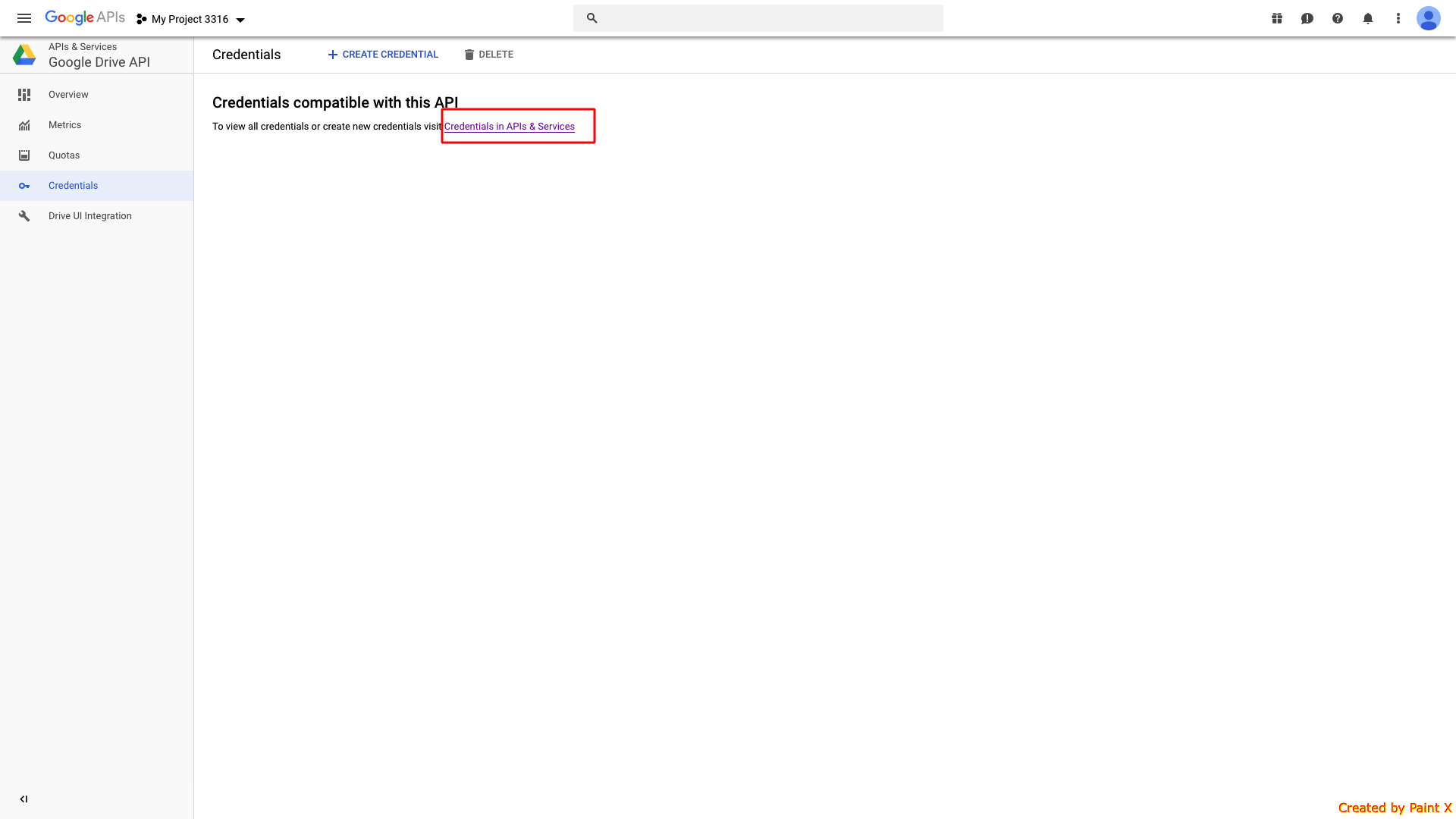
Step 16 : Click on Credentials in APIs & Services
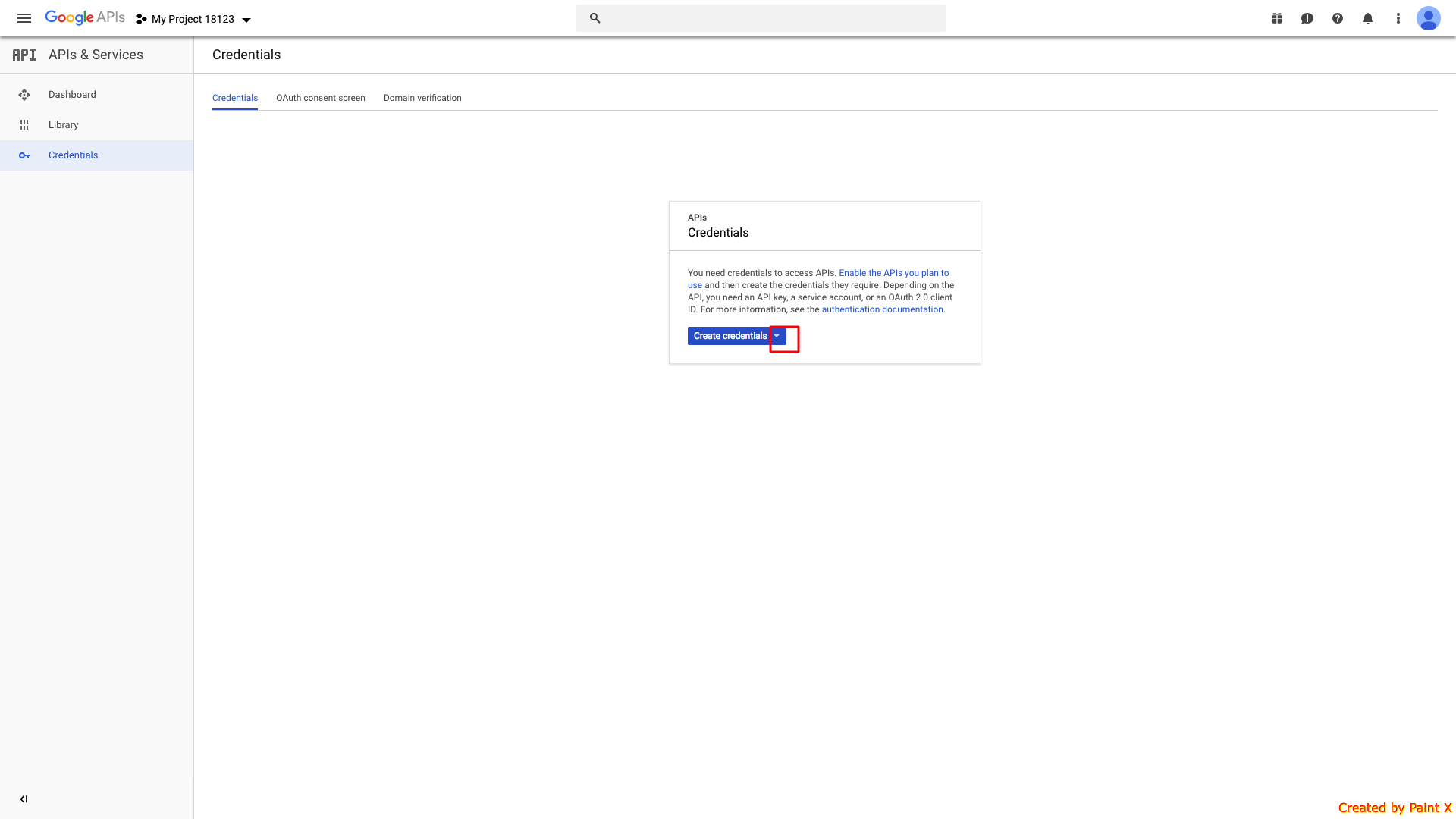
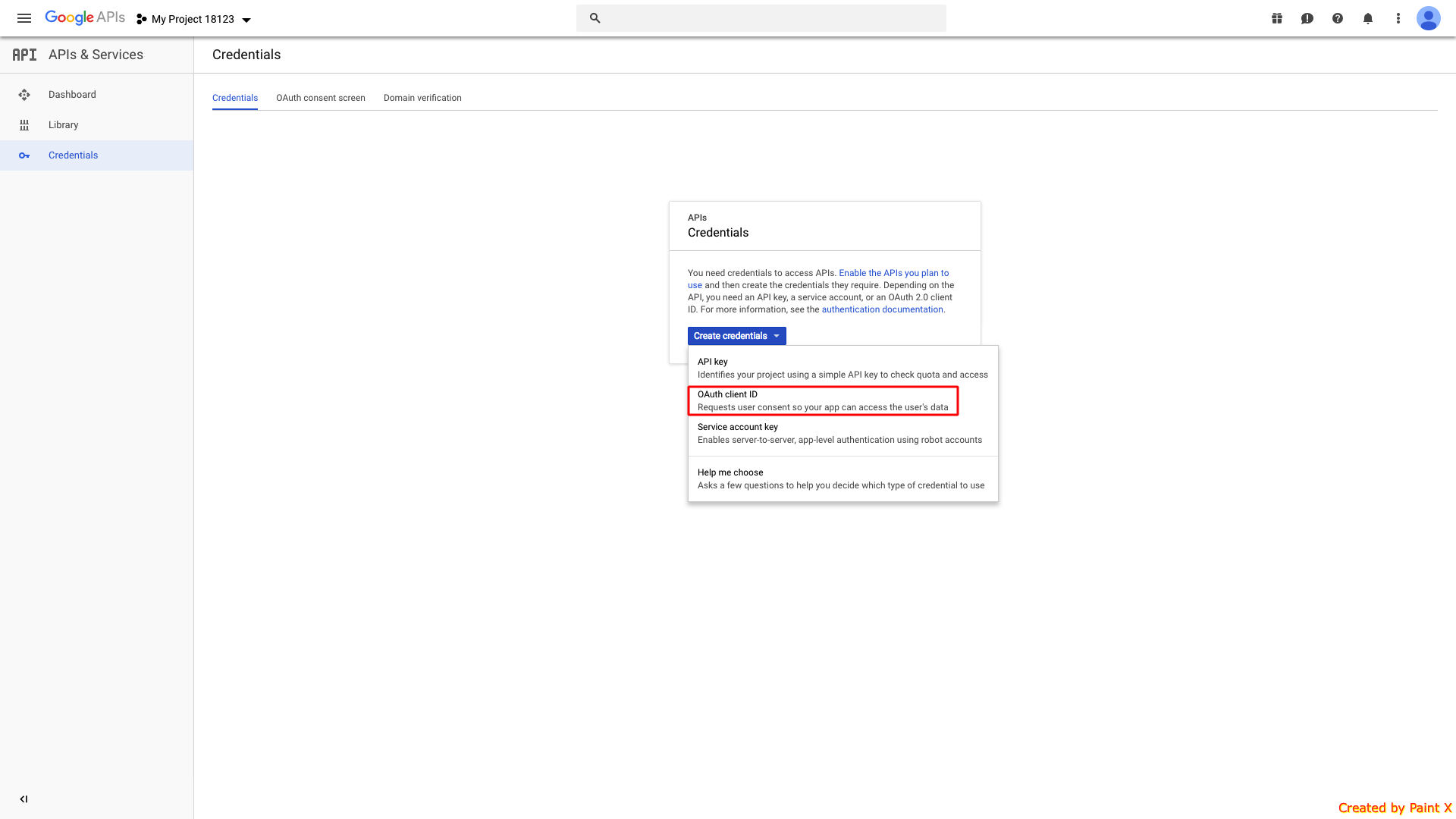
Step 17 : Open Create Credentials dropdown menu
Step 18 : Click on OAuth client ID
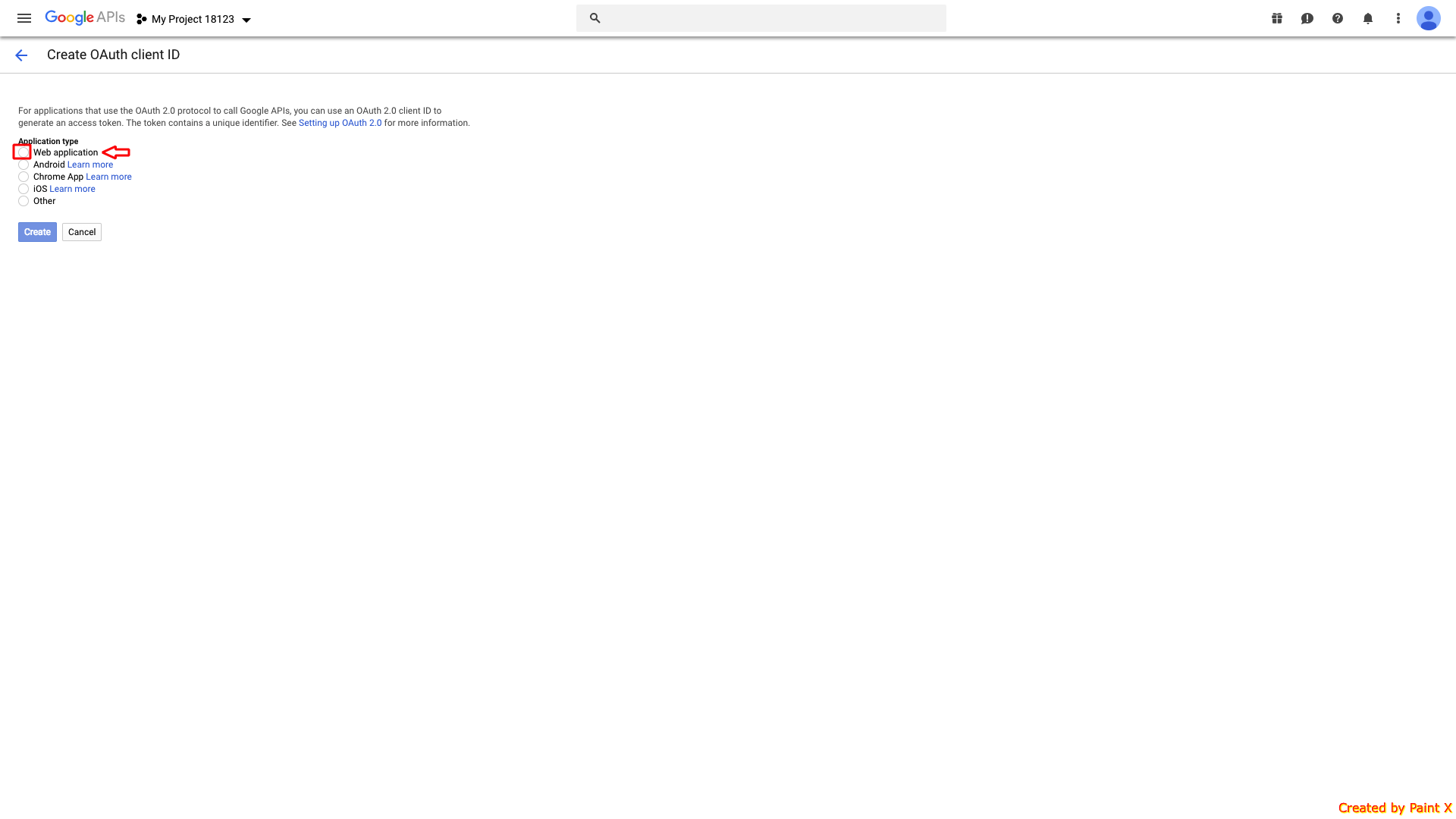
Step 19 : Select Web Application as the application type
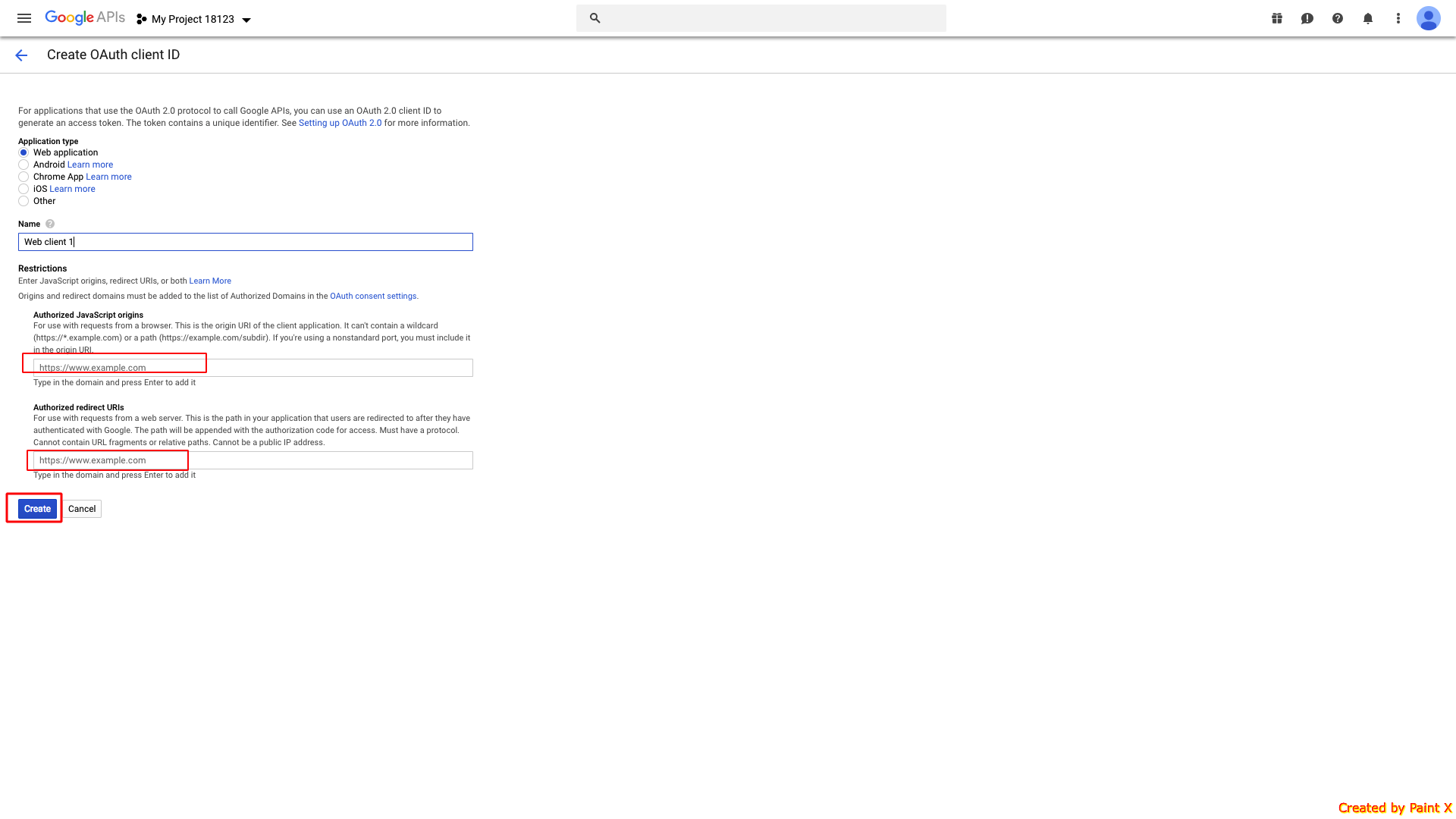
Step 20 : In the Authorized JavaScript origins field, enter the URL - https://gigafix.myapparea.com While in Authorized redirect URLs field :
Enter URL - https://gigafix.myapparea.com/app/app-sheet if you are using Google Sheets page
Enter URL - https://gigafix.myapparea.com/app/document if you are using Document page
Note: Just for your information, you can use both redirect URLs as it will prove to be beneficial in future when you need to add another page
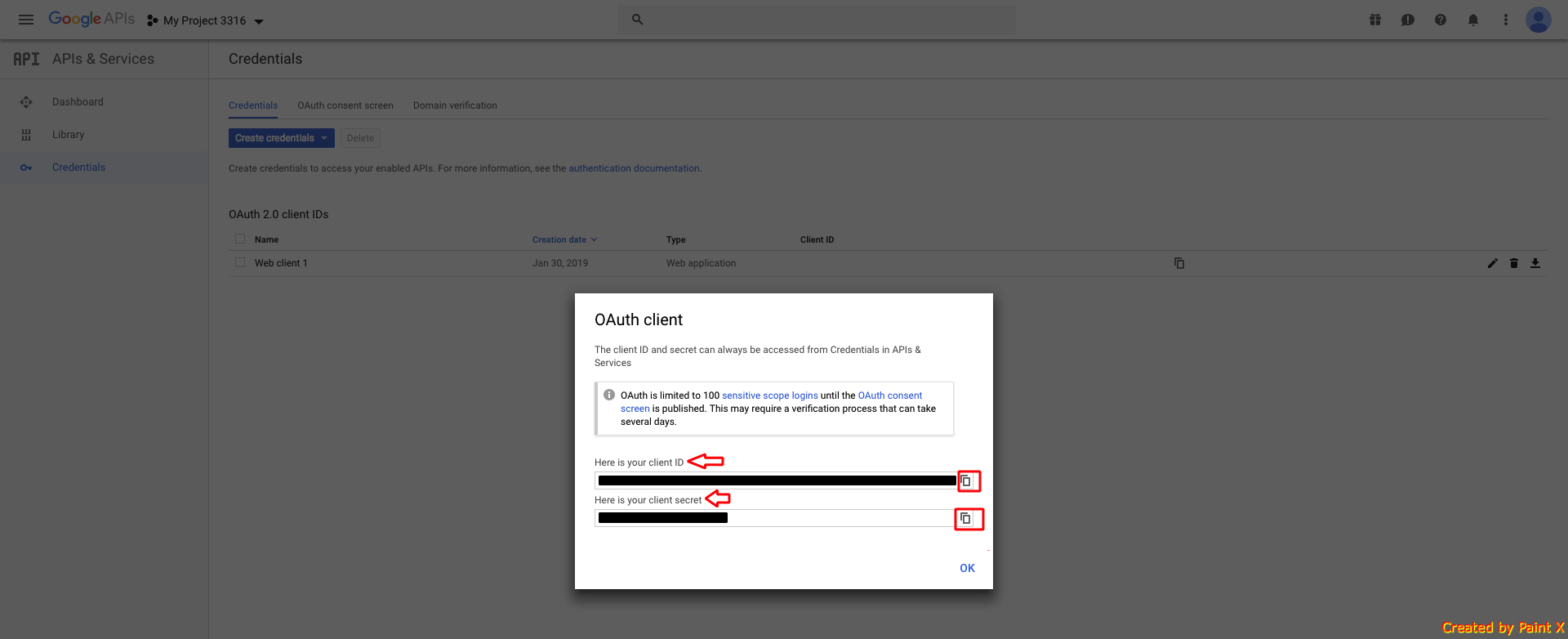
Step 21 : Your Client ID and Client Secret key will appear. Copy them
Step 22 : Paste the copied keys in the respective fields on the creator software
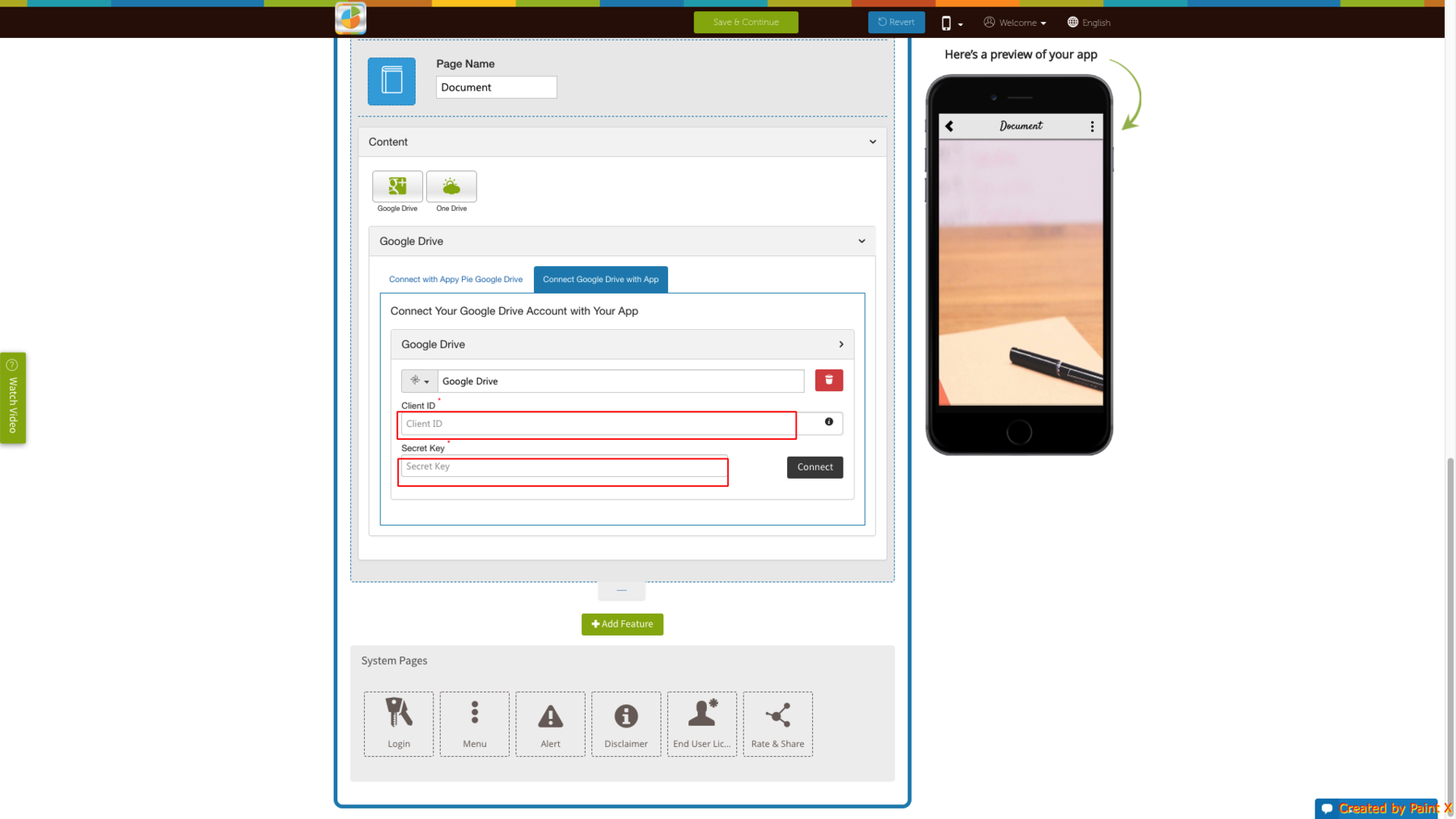
Note:
Case 1: (If you have added both redirect URLs in Step 20) If you have logged in into your Google Account, and connecting your Google Sheets with app, follow our tutorial:
Case 2: If you are connecting Google Sheets with your app via Google Sheet URL, you need to simply copy your Google Sheet public URL and paste it in https://gigafix.myapparea.com
Case 3: (If you have added only 1 redirect URL in Step 20) If you have added any of the Google Doc supportive pages ( like: Google Sheets or Document page), and want to add another page (Google Sheets or Document page) then you would need to fill verification update form
Questo articolo è stato utile
Questo articolo è stato utile
Grazie per il tuo feedback!
- Aderire
- Registrati
